How to Track Hyperliquid Whale Wallets on Crypffalo: Step-by-Step
Author: Crypffalo Research · 19:50 04/10/2026
Step-by-step guide: read the real-time whale wallet table, inspect a wallet, see whether whales lean Long or Short, view whales by coin and open wallet profiles.

The Whale Wallets section shows you what the largest wallets on Hyperliquid are doing: opening or closing positions, going Long or Short, entry price, liquidation price and PnL. This guide walks you through it step by step, with a screenshot for each step. The numbers highlighted in yellow in each image match the explanations below.
Quick summary
- Real time: see which wallets are trading second by second and whether they are opening or closing positions.
- Click a wallet: see its equity, open positions, latest trades and win rate.
- Whale Positions: see whether whales lean Long or Short and the large positions just opened or closed.
- By Coin: see how whales are positioned in BTC, ETH, SOL…
- Wallet profile: a dedicated page for each major whale wallet.
Step 1: Open Whale Wallets and pick a tab
Click Whale Wallets in the menu. The page has 4 main tabs and a lookup box.
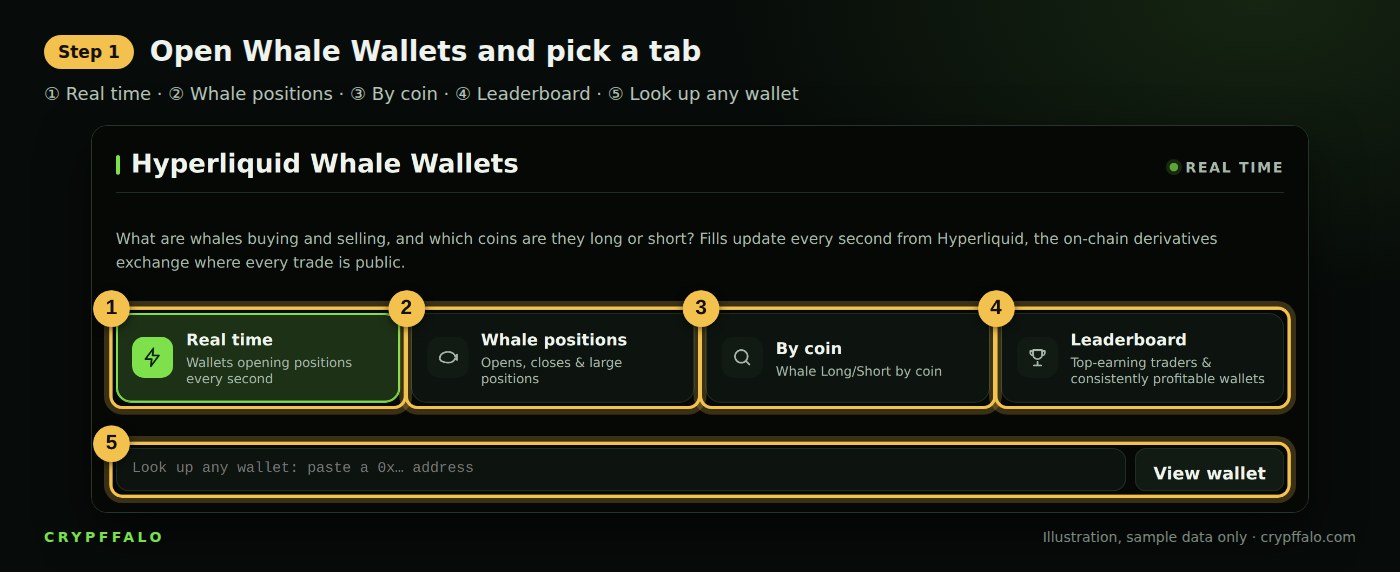
- ① Real time: the most active wallets, updated every second.
- ② Whale Positions: an overview of whether whales are Long or Short, plus large positions just opened or closed.
- ③ By Coin: pick a coin to see which whales are holding it.
- ④ Leaderboard: the most profitable wallets by day, week and month, plus consistently profitable wallets.
- ⑤ Wallet lookup: paste a wallet address starting with 0x… and click View wallet.
Step 2: Read the Real-time table
The Top 50 most active wallets table ranks wallets by recent trading volume. You can choose a 5-minute, 15-minute or 1-hour window.
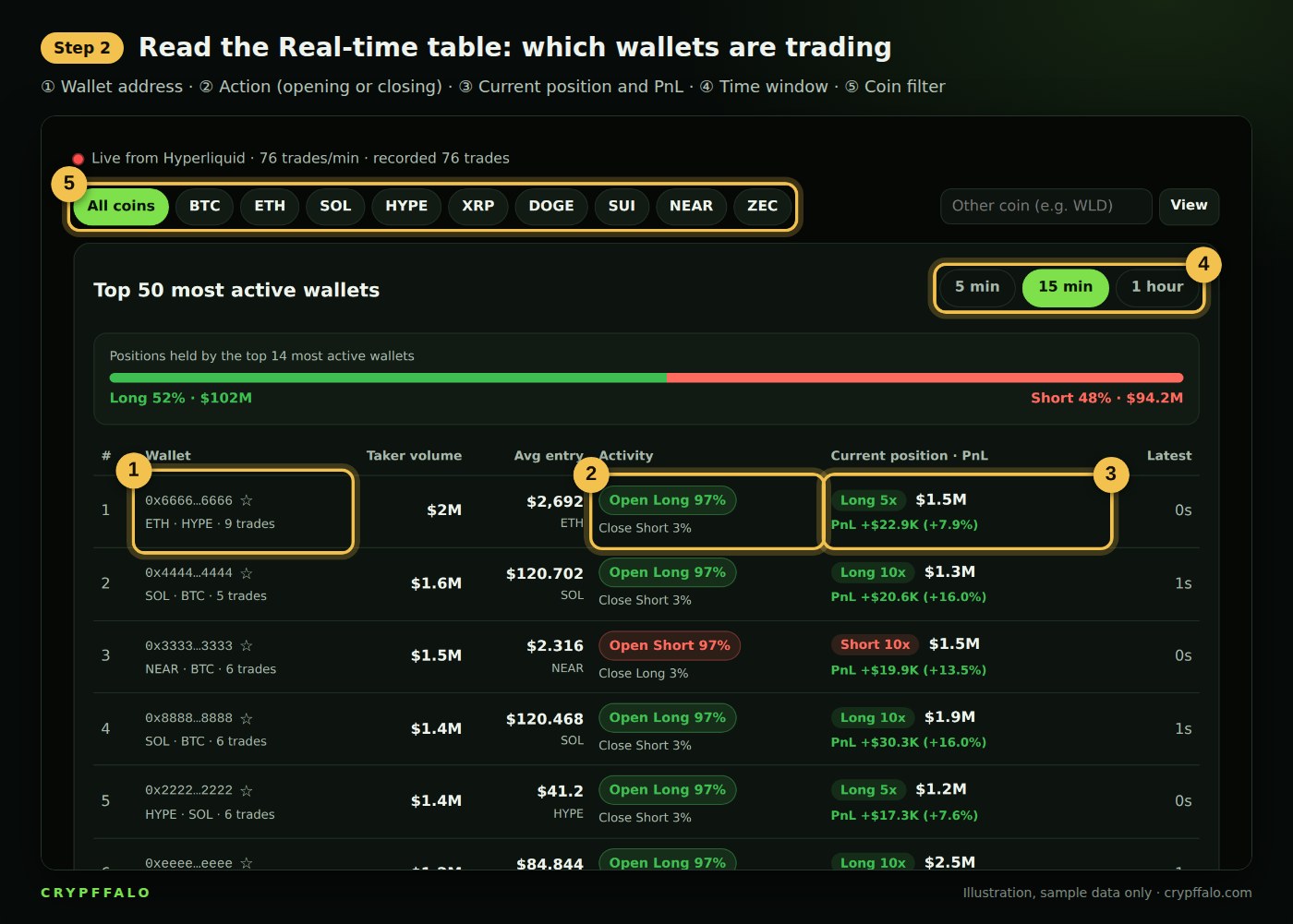
- ① Wallet: the wallet address and the coins it is trading. Click the address to see details (step 3). Click ☆ to add the wallet to your watchlist.
- ② Action: whether the wallet is Opening Long, Opening Short, Closing Long or Closing Short. This is the most important column: a "sell" can be a new Short or simply closing an existing Long.
- ③ Current position · PnL: whether the wallet is holding Long or Short, its leverage, position size and unrealized PnL.
- ④ Time window: the last 5 minutes, 15 minutes or 1 hour.
- ⑤ Coin filter: show only wallets trading a specific coin, for example BTC.
Step 3: Click a wallet to see details
Click any wallet address and a detail panel opens.
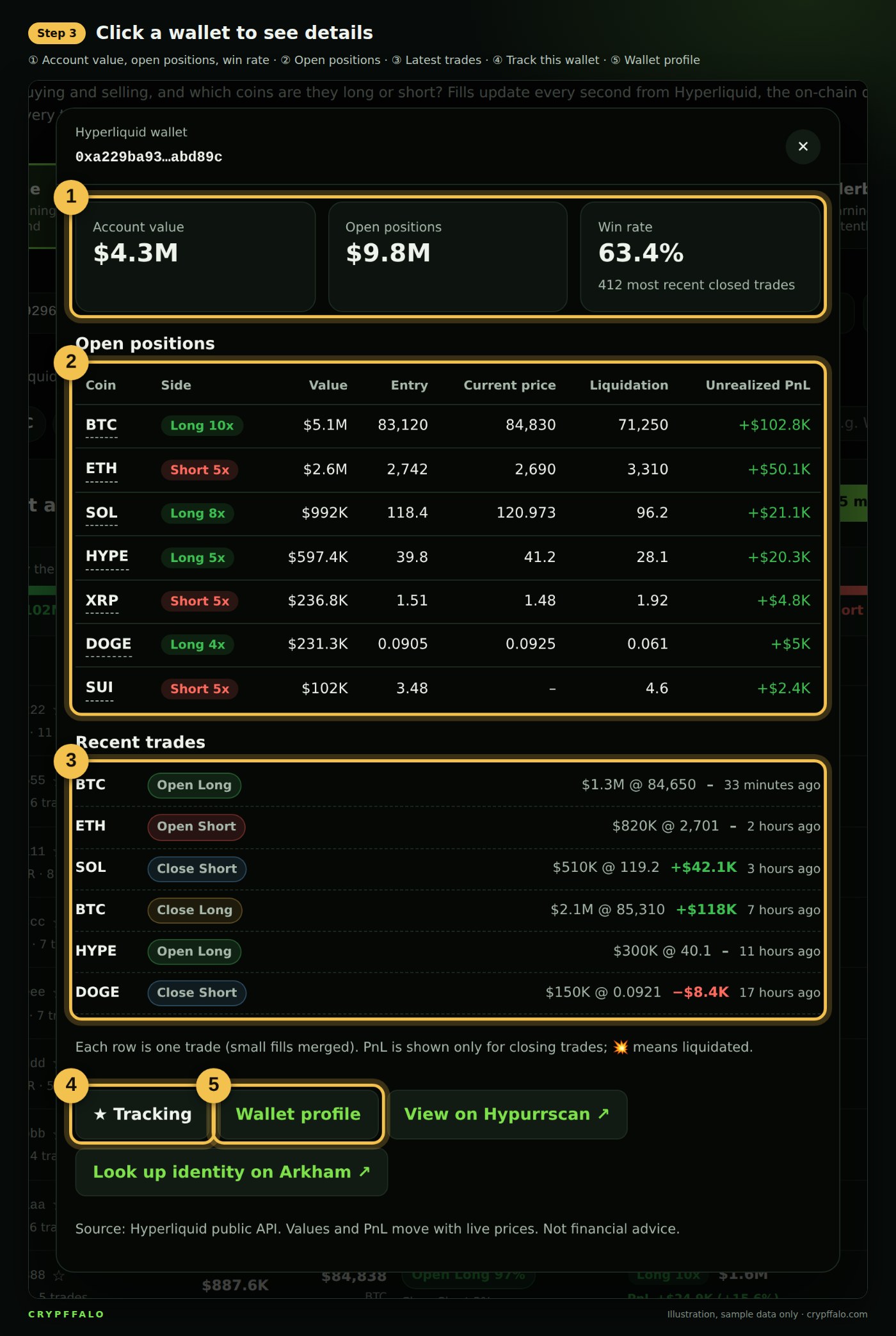
- ① Overview: account value, total open positions and the wallet's win rate.
- ② Open positions: each coin, Long/Short side, leverage, entry price, current price, liquidation price and unrealized PnL.
- ③ Latest trades: which positions the wallet just opened or closed, when, and how much it made or lost.
- ④ Track this wallet: add the wallet to your list. See how to track wallets and get alerts in the guide to choosing coins and wallets to track.
- ⑤ Wallet profile: opens the wallet's dedicated page (step 7).
Step 4: Whale Positions tab: which way are whales leaning?
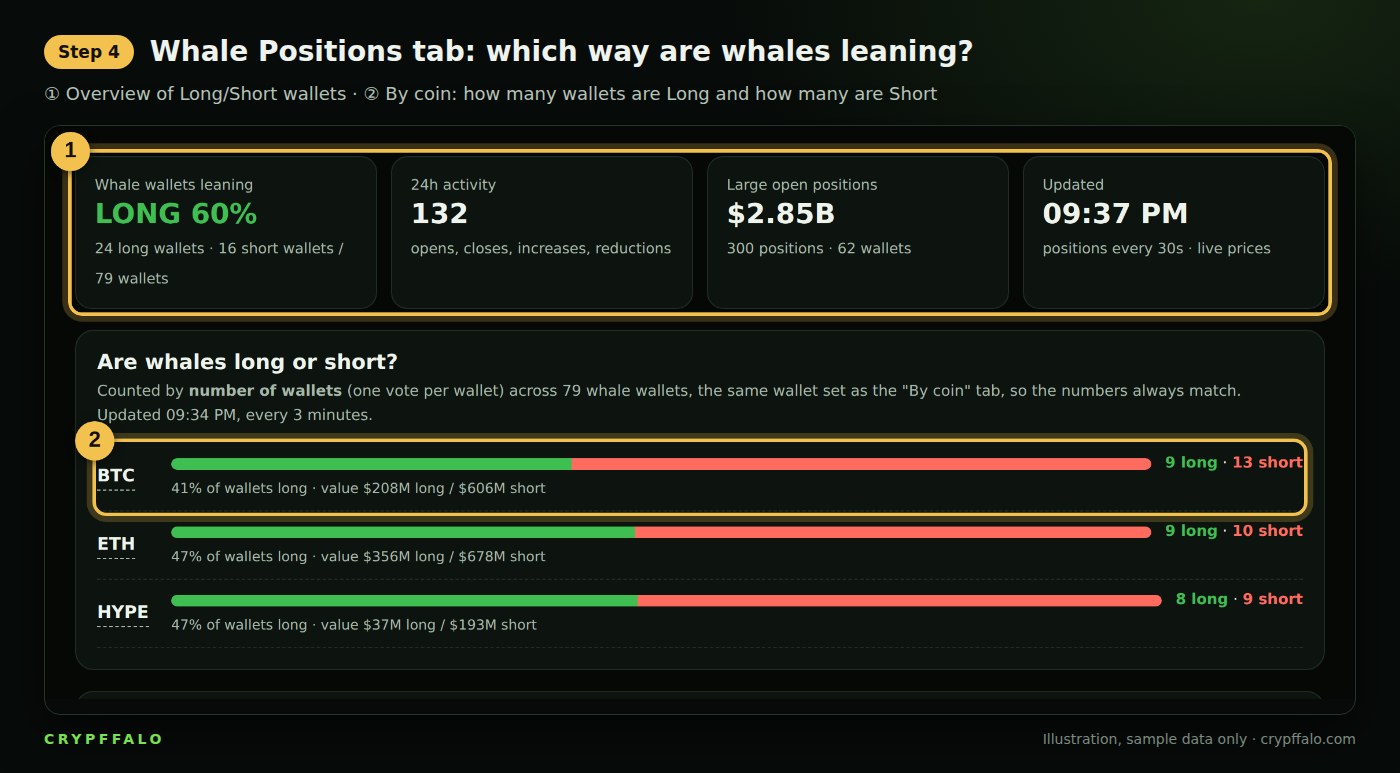
- ① Overview: the percentage of whale wallets leaning Long, the number of actions in the last 24 hours, and the total value of large open positions.
- ② By coin: the green bar is the number of Long wallets, the red bar the number of Short wallets. For example, "21 long · 4 short" means that among whale wallets holding that coin, 21 are Long and 4 are Short.
Step 5: Latest whale activity
Scroll down in the Whale Positions tab to see large trades that just happened.
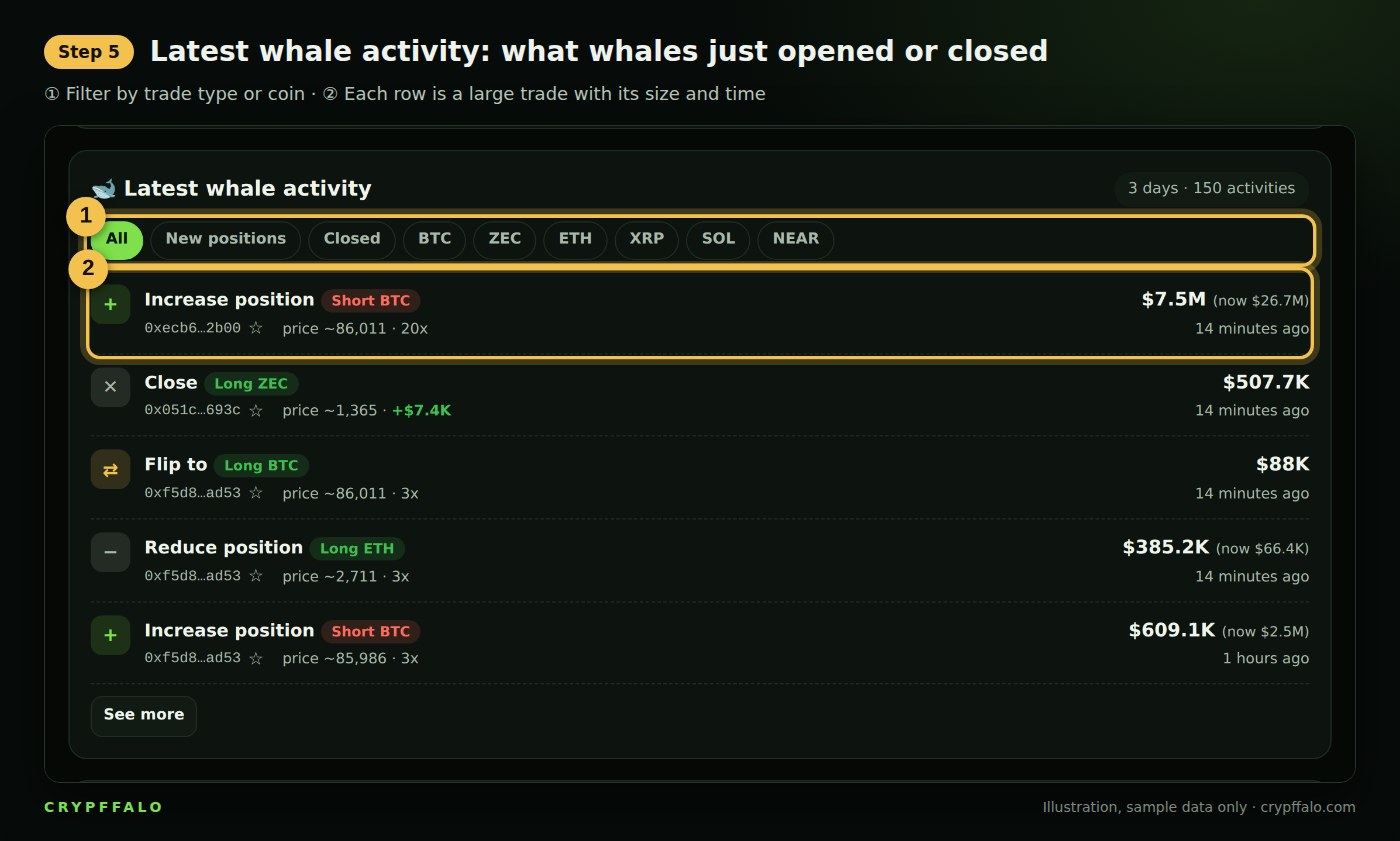
- ① Filters: show only newly opened positions, closed positions, or filter by coin.
- ② Each row is a large trade: Open, Close, Increase or Decrease, which coin, size, price, leverage and realized PnL on close.
Step 6: By Coin tab
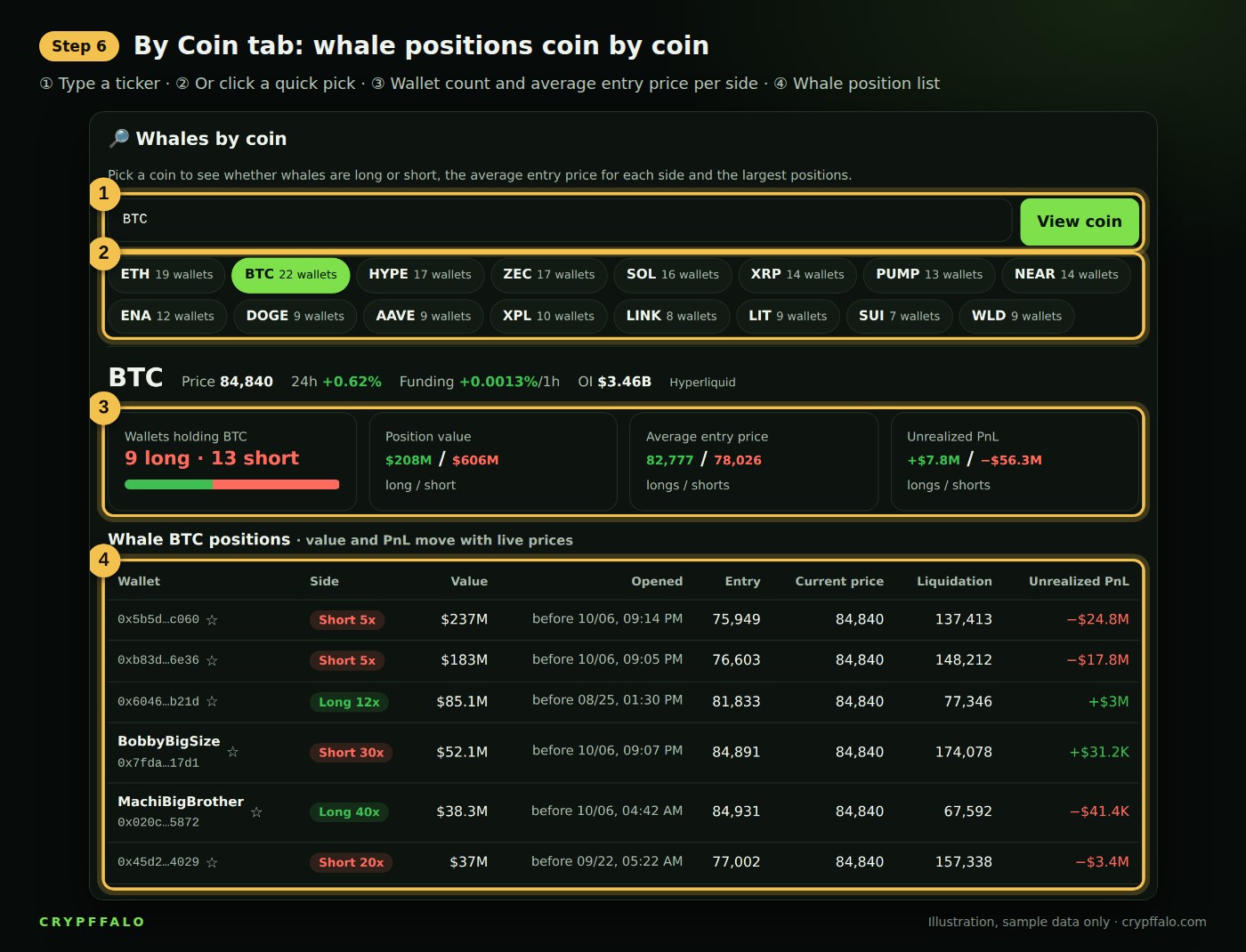
- ① Coin input: type a ticker (for example BTC, ETH, PEPE) and click View coin.
- ② Quick picks: click to jump to the coins most held by whales.
- ③ Summary: number of Long/Short wallets, total value, average entry price for each side and unrealized PnL. The average entry price tells you whether whales are in profit or "stuck" in their positions.
- ④ Position list: each wallet, side, size, open time, entry price and liquidation price.
For more on a coin's price, funding, Long/Short ratio across exchanges and liquidations, open the Coin Data page.
Step 7: Whale wallet profiles
Each major whale wallet has its own page. Open the list at Whale Wallet Profiles or click Wallet profile in the detail panel from step 3.
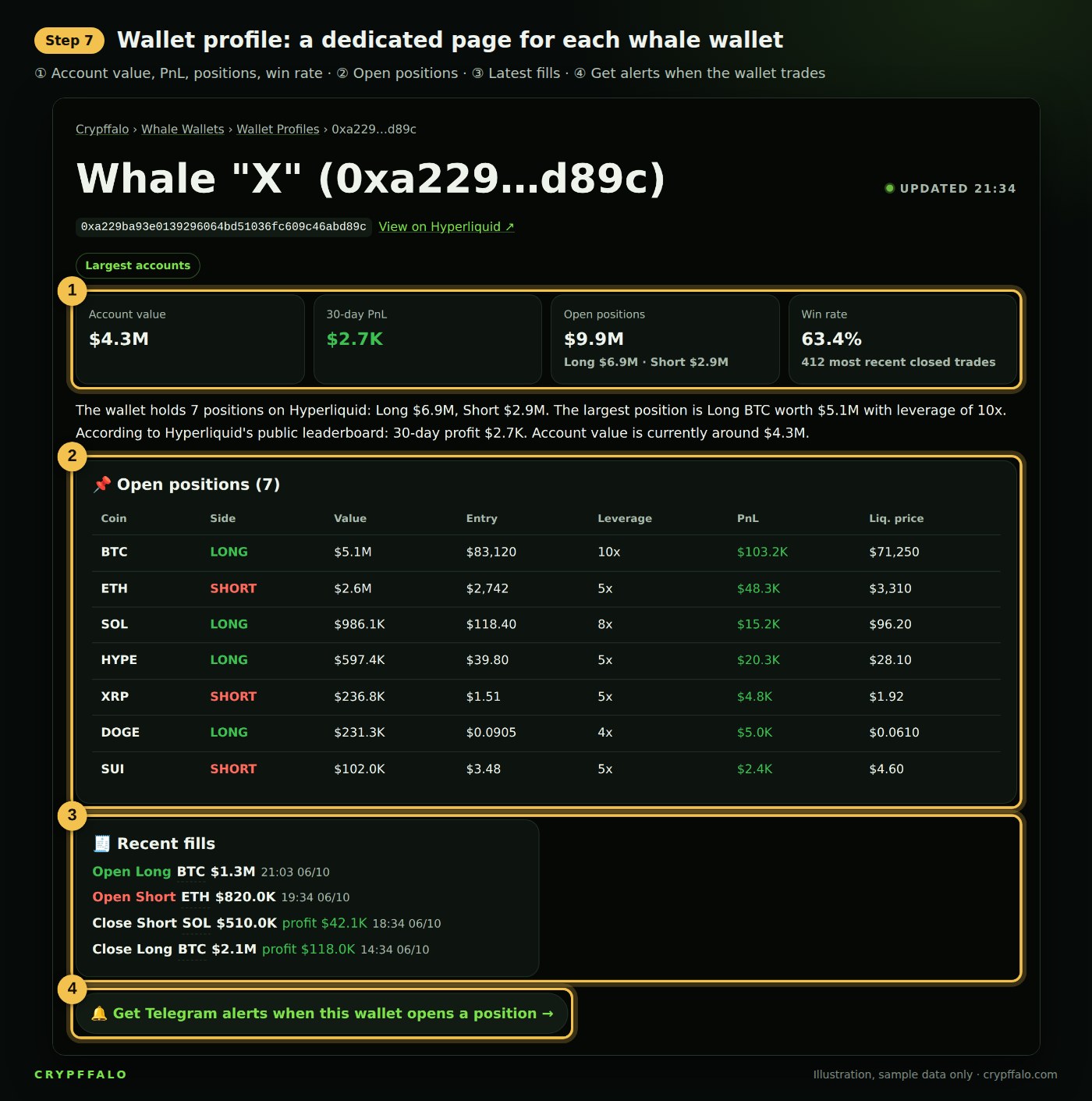
- ① Overview: account value, 30-day and all-time PnL, total position size, win rate.
- ② Open positions with entry price, leverage, PnL and liquidation price.
- ③ Latest fills for the wallet.
- ④ Get Telegram alerts whenever this wallet opens a trade. See the Telegram connection guide.
Free version and Gold
- The free version shows the first 5 rows of each table and details for the top wallets in the Real-time table.
- Gold members (with a 7-day free trial) get every table in full, can look up any wallet, track up to 50 wallets and receive Telegram alerts.
Important note
Wallet data is public data from the Hyperliquid blockchain and is for reference only. Whales lose money too and can get liquidated, and some wallets are hedging positions held elsewhere. Don't copy trades blindly. This content is not financial advice. Images in this article use sample data.
Tags: Guides, Whale Wallets, Hyperliquid
Related articles
- What is Bitcoin dominance? How to read BTC.D to spot altcoin season (with examples)
- What Are Bollinger Bands? How to Read the Squeeze, %B and BandWidth (With Examples)
- What Is DCA? How to Dollar-Cost Average Into Bitcoin (With Examples)
- What Is MACD? How to Read Crossovers, Histogram and Divergence (With Examples)
- Reversal Candlestick Patterns: Pin Bar, Engulfing, Doji and How to Read Them in the Right Place
- Fibonacci Retracement: How to Find Entry Zones on Pullbacks, Set Stop Loss and Targets