How to Choose Coins and Whale Wallets to Track on Crypffalo
Author: Crypffalo Research · 19:55 04/10/2026
How to save whale wallets to your watchlist, pick coins for alerts (BTC, ETH, SOL, HYPE…) and view Coin Data on Crypffalo, step by step with screenshots.

Interested in a few whale wallets or specific coins? Crypffalo lets you save tracked wallets and choose alert coins, so you don't have to search for them every time you open the site, and the Telegram bot notifies you as soon as something moves. This article walks you through it step by step with screenshots.
Before You Start
- You need a Crypffalo account. If you don't have one, click Log in at the top and choose Start 7-day free trial (free, email only), or go to Gold.
- Active members can track up to 20 wallets and 10 coins for notifications. Telegram notifications are for Gold members only; expired accounts stop receiving notifications until they renew.
Step 1: Open the Account Menu
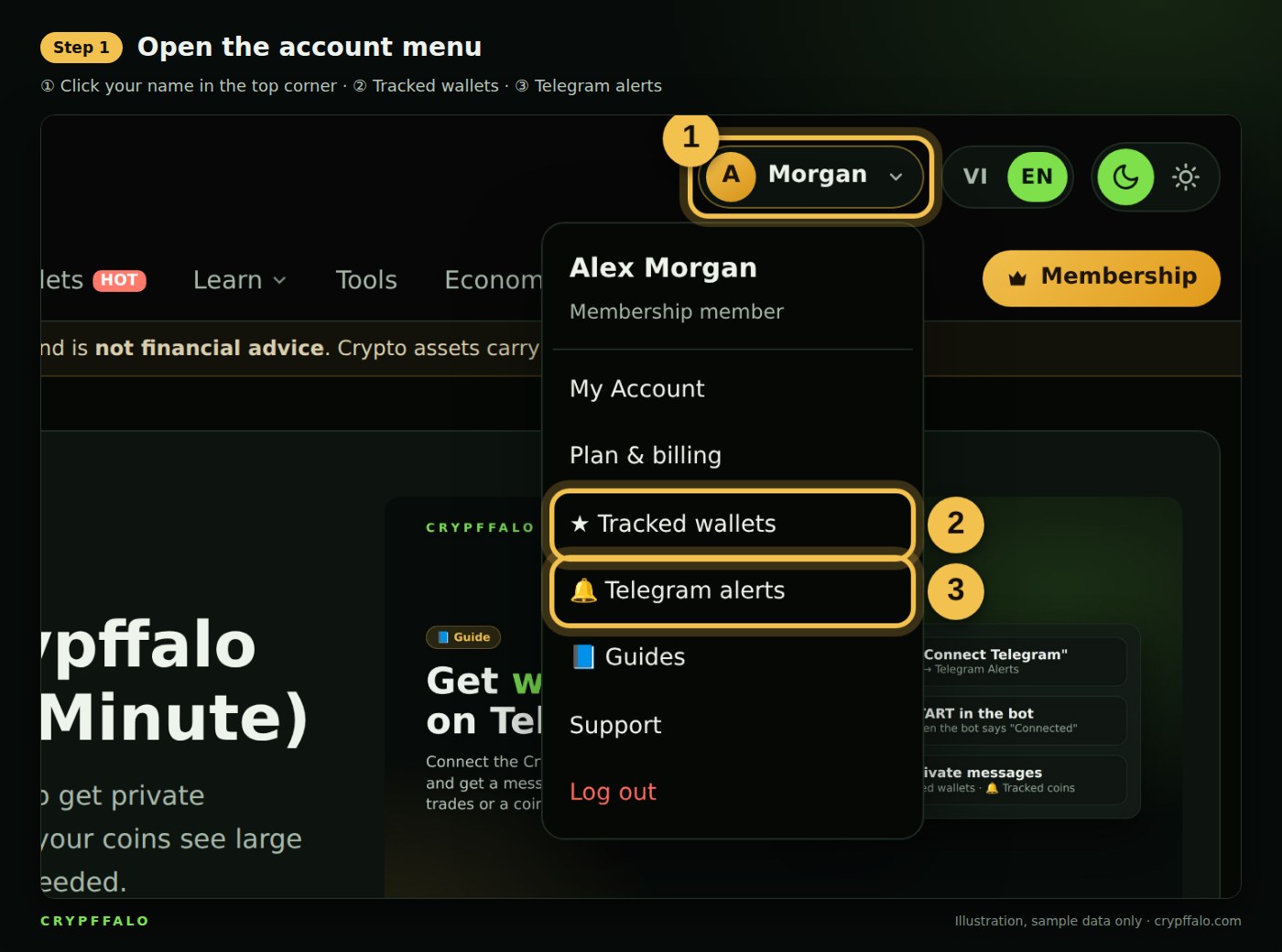
- ① Click your name in the top right corner.
- ② Tracked wallets: the list of wallets you have saved.
- ③ Telegram notifications: choose alert coins and connect the bot.
Step 2: Choose Coins for Alerts
Go to Telegram notifications. If you haven't connected Telegram yet, follow the Telegram connection guide first (takes about 1 minute), then come back here.
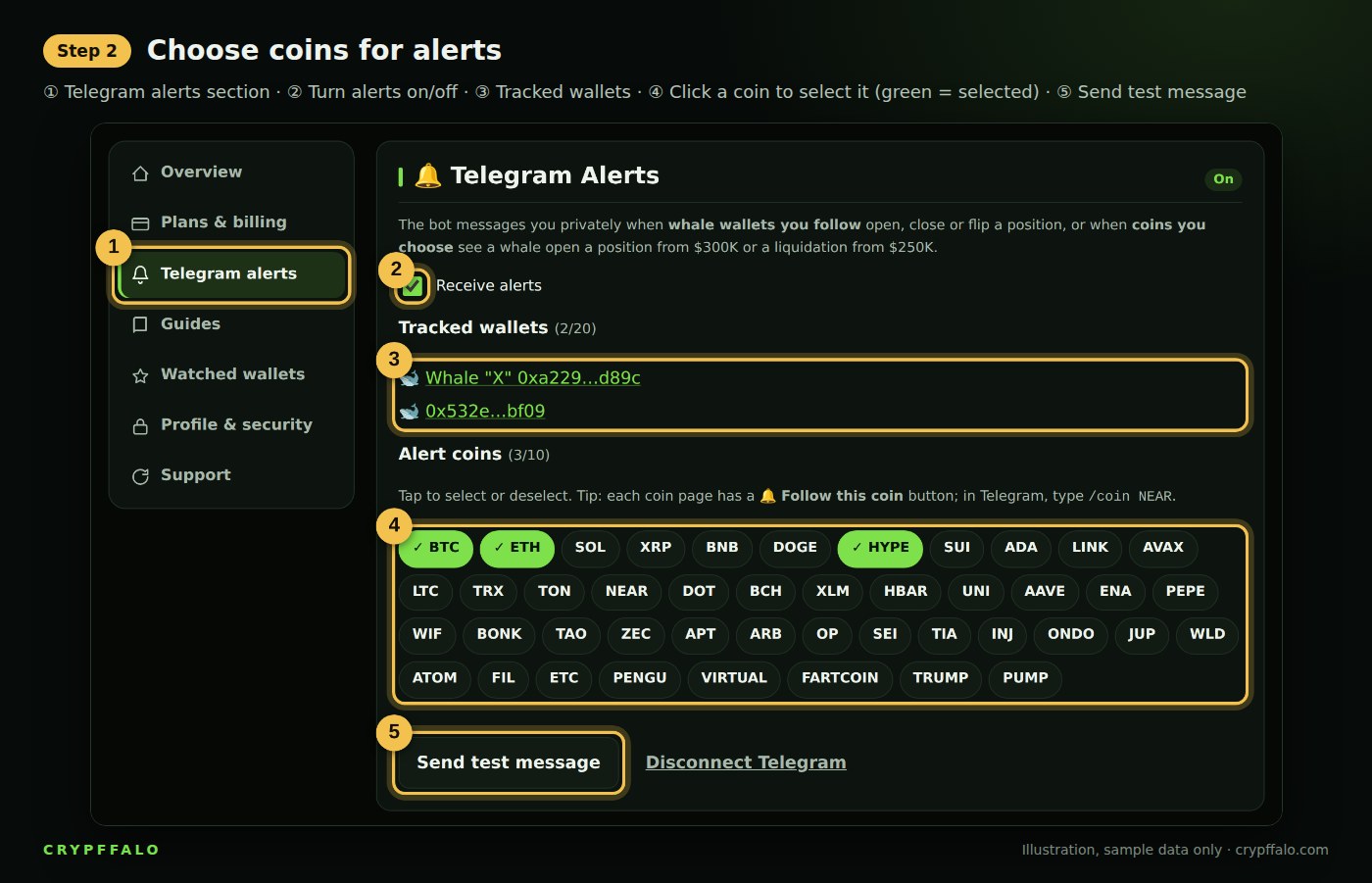
- ① The Telegram notifications section in your account.
- ② Receive notifications: check to turn on, uncheck to pause.
- ③ Tracked wallets: the wallets you have saved; the bot notifies you when a wallet opens, closes, flips, increases or reduces a position.
- ④ Alert coins: click a coin to select it, click again to deselect. The site saves instantly. The bot notifies you when that coin has a whale opening a position of $300K or more or a liquidation of $250K or more.
- ⑤ Send test message: click to check that the bot can message you.
Step 3: Add Wallets to Track
There are 3 ways to save a wallet to your watchlist:
- In the Whale Wallets table, click the ☆ next to the wallet address (it turns into ★ once saved).
- Click a wallet to open its details, then click ☆ Track this wallet.
- Go to Account → Tracked wallets and paste the wallet address as shown below.
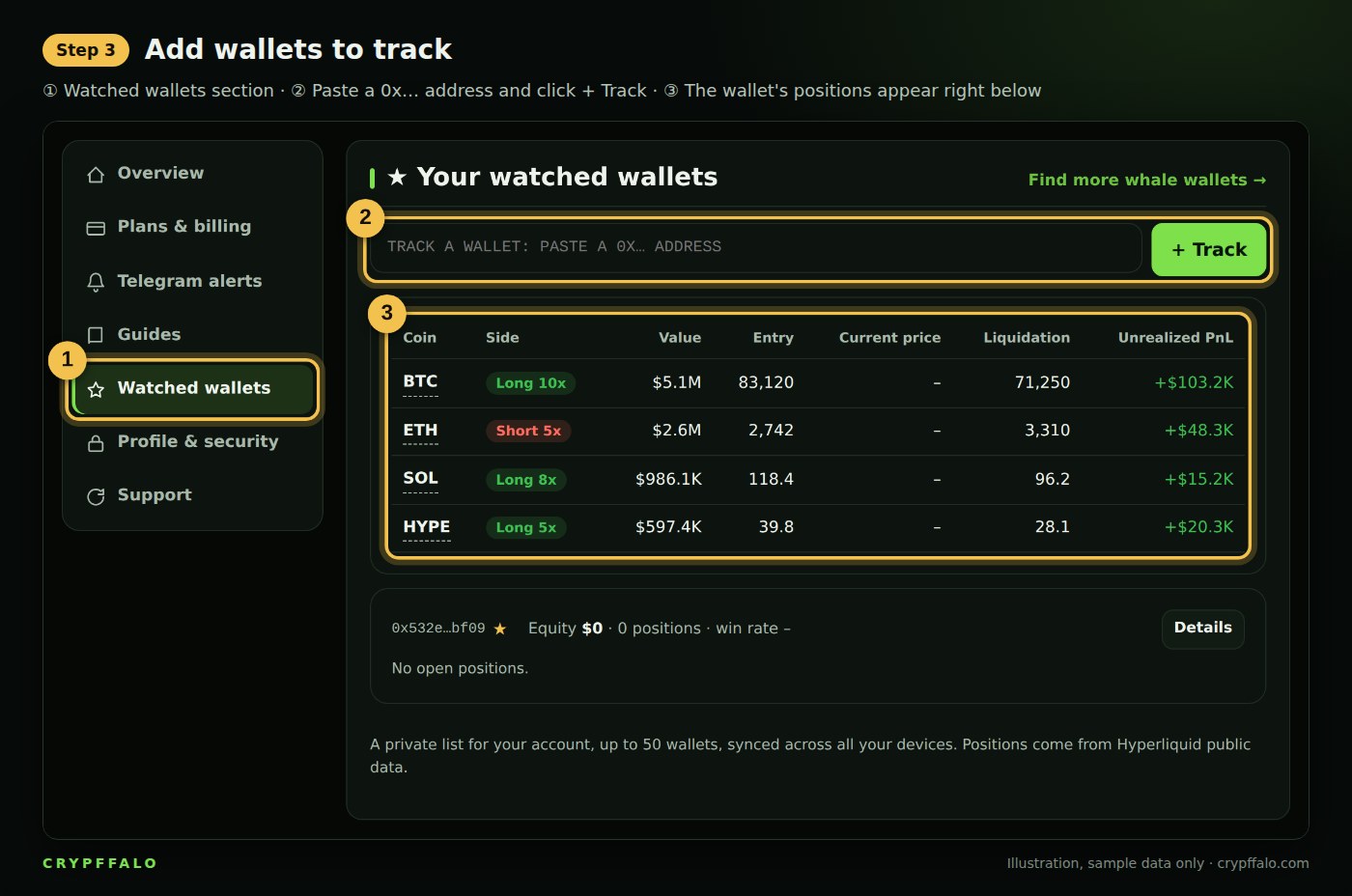
- ① The Tracked wallets section in your account.
- ② Paste the wallet address (starting with 0x…) and click + Track.
- ③ The wallet's open positions appear right below: coin, side, value, entry price, liquidation price, PnL. The list syncs across all devices when you are logged in.
To stop tracking, click the ★ next to the wallet again.
Step 4: View Data for Any Coin
Besides alerts, each major coin has its own data page, for example the BTC page. Go to Data → Coin Data, or open the coin list and click the coin you want.
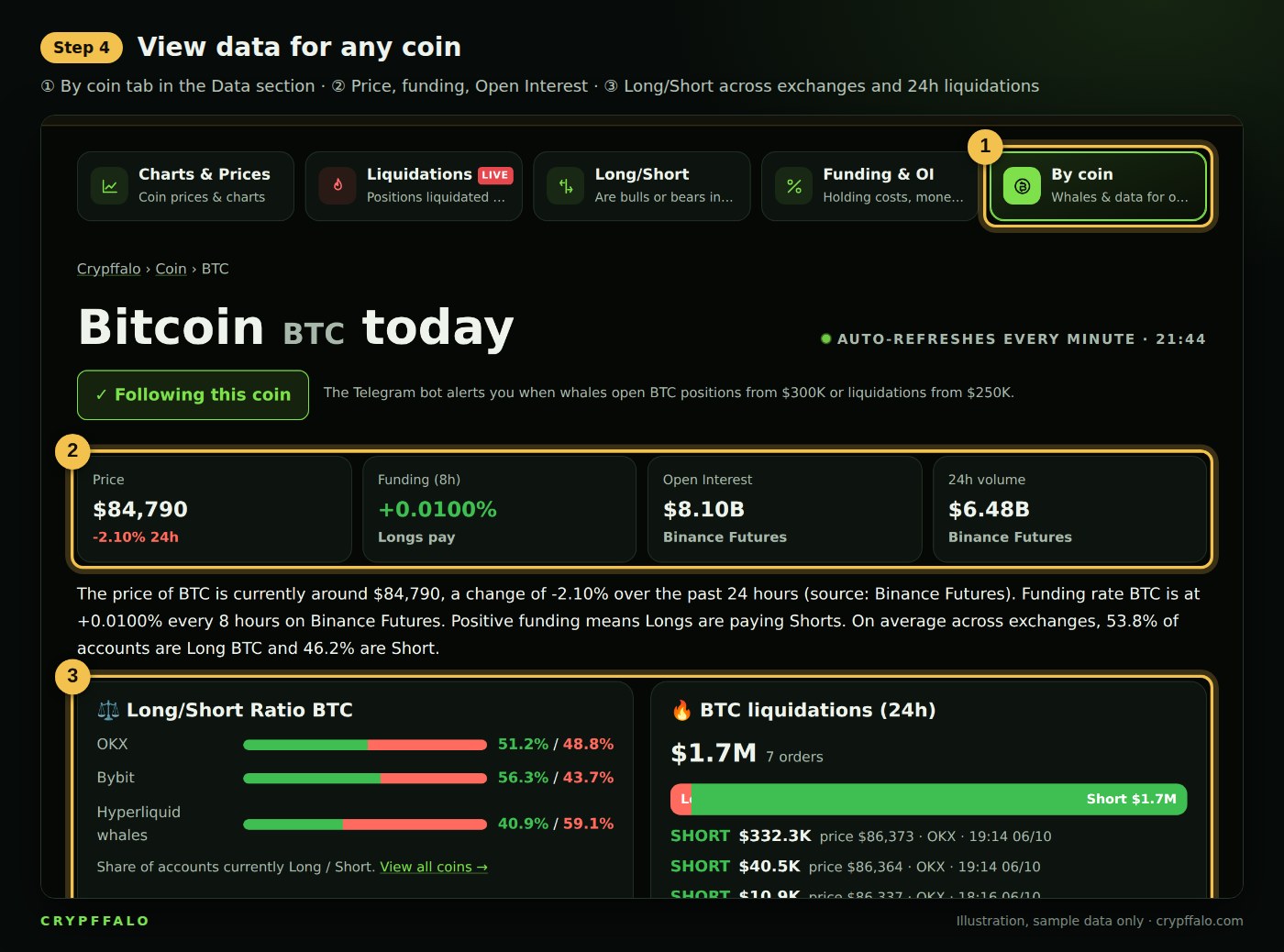
- ① The Coin Data tab in the Data section.
- ② Price, 24-hour change, funding rate, Open Interest and volume.
- ③ Long/Short Ratio on Binance, OKX, Bybit and Hyperliquid whales, plus that coin's 24-hour liquidations. Scroll down to see whether whales are Long or Short this coin.
The page refreshes every minute, and you can bookmark it for quick access.
Tips
- Choose coins you actually trade, and avoid selecting too many so notifications don't pile up.
- Every morning at 7:00 (GMT+7), read the Crypto Brief for an overview before checking individual coins.
Note
Alerts only help you learn about market moves early; they are not buy or sell signals. This content is not financial advice. Screenshots in this article use sample data.
Tags: Guides, Whale Wallets, Telegram
Related articles
- What is Bitcoin dominance? How to read BTC.D to spot altcoin season (with examples)
- What Are Bollinger Bands? How to Read the Squeeze, %B and BandWidth (With Examples)
- What Is DCA? How to Dollar-Cost Average Into Bitcoin (With Examples)
- What Is MACD? How to Read Crossovers, Histogram and Divergence (With Examples)
- Reversal Candlestick Patterns: Pin Bar, Engulfing, Doji and How to Read Them in the Right Place
- Fibonacci Retracement: How to Find Entry Zones on Pullbacks, Set Stop Loss and Targets